Showing posts with label Avamar. Show all posts

Redirect Avamar System State Backup to another Drives


On Windows 2003 AVAMAR client uses the NTBackup Utility to create a backup of the system state, it stores this backup in var in the avamar client install directory (C:\Program Files\avs\var\).  If the space on that drive is limited you can set an attribute systemstatefile with a value of the full path to store the back up –


To modify the location for just one client individually:

1. Log on the Windows client 
2. Go to the AVAMAR_INSTALL_PATH\avs\var directory 
3. Create a file named avtar.cmd 
4. Edit this avtar.cmd file with notepad and add the parameter as given below: 

--systemstatefile=NEW_LOCATION 


For example, 
-- systemstatefile="D:\Avamar_BKF\systemstate.bkf"
Notes: You must now include this location as part of the dataset of the File System backup

Calculate the size of f_cache and p_cache for AVAMAR

Formulas to help determine the correct size of your f_cache and p_cache for AVAMAR backups

AVAMAR F_cache And P_cache Formulas

f_cache = N * 40MB

N = Millions of Files

So for 3 million files:

f_cache = 3 * 40MB = 120MB

p_cache = DB Size in GB/Average Chunk * 20MB

Average Chunk Sizes-
Exchange DB: 16
Microsoft SQL DB: 24

For a 100GB Microsoft SQL DB:
p_cache = 20/24 * 20MB
p_cache = 83.3MB

Avamar retention Type


There are two types of Avamar retention settings. 


Basic retention settings specify a fixed expiration date.
Advanced retention settings specify the number of daily, weekly, monthly, and yearly backups to keep.

Basic retention settings
Retention Period: Allows you to specify how long will the backup from the backup taken.

End Date: Specify based on date (When its going to be expired)

No end data: Backups never expire.


Advanced retention settings
Allows you to define how long to keep backups based on how they are tagged. Backup jobs can be tagged as daily (D), weekly (W), monthly (M) and yearly (Y). 

Every backup job is a daily job and is marked with a "D". 

If a backup was made on a Sunday, it is tagged with a "W" to signify it is a weekly. 

The very first backup job of the month is marked as an "M" which stands for monthly. 

The very first backup job of the year is marked with a "Y" for yearly. 


Tags can be combined for backup jobs to create layers of retention. The first backup job of any system is tagged as "DWMY". Jobs made on a Sunday are tagged "DW", while the first backup of the month is marked "DM" if it is not on a Sunday, which is then tagged with a "DWM".

For purposes of assigning advanced retention types, each day begins at 00:00:01 GMT, each week begins on Sunday, each month begins on the first calendar day of that month and each year begins on January 1.


Notes:You cannot apply advanced retention settings to on-demand backups. On-demand backups can occur at any time, and are therefore inherently asynchronous—the system cannot tag them as daily, weekly, monthly, or yearly.

EMC Avamar 7 new features

Version 7 of the Avamar backup software adds new features in three main areas. These areas, in order of interest to me personally, are:
  • VMware
  • Isilon
  • Data Domain
VM


AVAMAR : Restarting MCS


What is Avamar MCS

The Management Console Server (MCS) provides centralized administration (scheduling, monitoring, and management) for the Avamar server. The MCS also runs the server-side processes used by the Avamar Administrator graphical management console which is serviced by JAVA.  When you start the Avamar GUI you are interacting with the MCS


PG28- EMC AVAMAR 6.1 ADMIN GUIDE

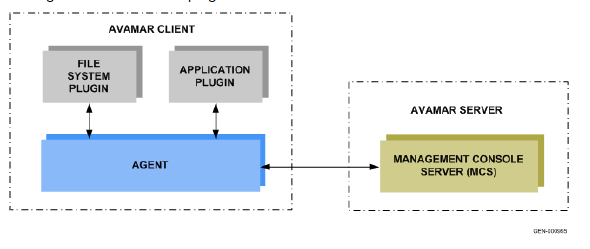
The MCS interacts with the client avagent to start backup and recovery. Avamar agents are platform-specific software processes that run on the client and communicate with the Management Console Server (MCS) and any plug-ins installed on
that client. The MCS contacts the client’s avagent process and starts an avtar to perform a backup or recovery. 

I have made some changes on configurations on mcserver.xml files /usr/local/avamar/var/mc/server_data/prefs/mcserver.xml and after the changes i'll need to restart MCS to make sure it takes affect.

As usual, you will need to login as ADMIN, or in my case i login as root and then change to Admin ID

admin@utility-01:~/>:su - admin
admin@utility-01:~/>:ssh-agent bash
admin@utility-01:~/>: ssh-add ~admin/.ssh/admin_key
STOP MCS (Its always suggested that you run dpnctl status first before stopping the MCS to check any services is down)
admin@utility-01:~/>: dpnctl stop mcs
dpnctl: INFO: Shutting down MCS...
dpnctl: INFO: MCS shut down.
After MCS Stopped, check the status
admin@utility-01:~/>: dpnctl status
dpnctl: INFO: gsan status: up
dpnctl: INFO: MCS status: down.
dpnctl: INFO: EMS status: up.
dpnctl: INFO: Backup scheduler status: down.
dpnctl: INFO: dtlt status: up.
dpnctl: INFO: Maintenance windows scheduler status: enabled.
dpnctl: INFO: [see log file "/usr/local/avamar/var/log/dpnctl.log"]

Start back MCS

admin@utility-01:~/>: dpnctl start mcs
dpnctl: INFO: Starting MCS...
dpnctl: INFO: To monitor progress, run in another window: tail -f /tmp/dpnctl-mcs-start-output-4109
dpnctl: INFO: MCS started.
Checked again the status
admin@utility-01:~/>: dpnctl status
dpnctl: INFO: gsan status: up
dpnctl: INFO: MCS status: up.
dpnctl: INFO: EMS status: up.
dpnctl: INFO: Backup scheduler status: down.
dpnctl: INFO: dtlt status: up.
dpnctl: INFO: Maintenance windows scheduler status: enabled.
During the start back MCS , there's a line shows to tail one file to monitor the progress. Here is the files, it will show you verbose
root@utility-01:~/#: tail -f /tmp/dpnctl-mcs-start-output-4109
check.mcs                        passed
=== PASS === check.mcs PASSED OVERALL (prestart)
Starting Administrator Server at: Thu Oct 11 14:51:00 SGT 2012
Starting Administrator Server...
2012-10-11 14:51:22.988:INFO::Logging to STDERR via org.mortbay.log.StdErrLog
2012-10-11 14:51:23.065:INFO::jetty-6.1.23
2012-10-11 14:51:23.100:INFO::Extract lib/axis2.war to /usr/local/avamar/var/mc/server_tmp/Jetty_0_0_0_0_9443_axis2.war____.w8a9ms/webapp
2012-10-11 14:51:26.267:INFO::Started SslSocketConnector@0.0.0.0:9443
Administrator Server started.
INFO: Starting Data Domain SNMP Manager....
INFO: Connecting to MCS Server: utility-01.corpnet2.com at port: 7778...
INFO: Successfully connected to MCS Server: utility-01.corpnet2.com at port: 7778.
INFO: No trap listeners were started, Data Domain SNMP Manager didn't start.
Sometime, in older version of Avamar when you stopped MCS it will stop the maintanencice and schedule, to start it back run this command:
dpnctl start maint

dpnctsl start sched

How to verify backup status using Avamar MCCLI

This guide is to help you to verify backup status from Avamar Utility Node. If you find using GUI is too slow to validate backup of hundreds of failed client, you can use this command which later you can customize a script and sent to your email etc2.

Syntax:
mccli activity show [GLOBAL-OPTIONS] [--active=Boolean(false)]
[--completed=Boolean(false)] [--domain=STRING]
[--queued=Boolean(false)] --name=STRING [--verbose=Boolean(false)]
[DISPLAY-OPTIONS]
--active=Boolean(false) If set true, only currently running activities are returned.
--completed=Boolean(false) If set true, only completed activities are returned.
--domain=STRING Specifies Avamar server domain containing the client specified by the --name argument.
If this option is suppled and --name is not supplied, all activities within that domain are shown.
--name=STRING Specifies client for which activities should be shown.
IMPORTANT: If a fully-qualified client name (for example, /clients/MyClient) is supplied, the --domain argument is ignored.
--queued=Boolean(false) If set true, only queued activities are returned.
--verbose=Boolean(false) If set true, detailed (verbose) activity information is returned. If set false or not supplied, summary
information is returned.

Example:
root@AVAMAR2-01:~/#:  mccli activity show --domain=/clients --name=petai.internal.com0,23000,CLI command completed successfully.ID               Status          Error Code Start Time           Elapsed     End Time             Type               Progress Bytes New Bytes---------------- --------------- ---------- -------------------- ----------- -------------------- ------------------ -------------- ---------1325749602471357 Completed       0          2012-01-05 02:46 GMT 00h:00m:30s 2012-01-05 02:47 GMT Replication Source 17,785,115,628 0.3%9132563981301809 Completed       0          2012-01-03 20:22 GMT 00h:10m:16s 2012-01-03 20:32 GMT Scheduled Backup   10,058,429,430 0.2%9132555240085809 Completed       0          2012-01-02 20:13 GMT 00h:10m:13s 2012-01-02 20:23 GMT Scheduled Backup   10,048,182,833 0.1%9132572629437809 Completed       0          2012-01-04 20:23 GMT 00h:12m:45s 2012-01-04 20:36 GMT Scheduled Backup   10,364,971,854 0.2%9132563880102609 Dropped Session 0          2012-01-03 20:00 GMT 00h:16m:50s 2012-01-03 20:16 GMT Scheduled Backup   228,208,607    <0.05%9132572520094709 Dropped Session 0          2012-01-04 20:00 GMT 00h:18m:12s 2012-01-04 20:18 GMT Scheduled Backup   205,595,909    <0.05%9132574628474509 Completed       0          2012-01-05 01:51 GMT 00h:03m:22s 2012-01-05 01:54 GMT On-Demand Backup   10,384,285,025 0.3%1325663022756671 Completed       0          2012-01-04 02:43 GMT 00h:00m:30s 2012-01-04 02:44 GMT Replication Source 8,604,757,950  0.2%1325573948329840 Completed       0          2012-01-03 01:59 GMT 00h:00m:00s 2012-01-03 01:59 GMT Replication Source 8,687,492,631  0.2% 

If you want to filter only the complete session add –completed argument:

root@AVAMAR2-01:~/#: mccli activity show --domain=/clients --name=petai.internal.com --completed=true
0,23000,CLI command completed successfully.
ID               Status          Error Code Start Time           Elapsed     End Time             Type               Progress Bytes New Bytes
---------------- --------------- ---------- -------------------- ----------- -------------------- ------------------ -------------- ---------
1325574080407145 Completed       0          2012-01-03 02:01 GMT 00h:00m:00s 2012-01-03 02:01 GMT Replication Source 8,772,149,532  0.2%
1325749741228668 Completed       0          2012-01-05 02:49 GMT 00h:00m:00s 2012-01-05 02:49 GMT Replication Source 8,943,263,903  0.2%
9132563520048709 Dropped Session 0          2012-01-03 19:00 GMT 00h:16m:45s 2012-01-03 19:16 GMT Scheduled Backup   240,225,638    <0.05%
9132572160051009 Dropped Session 0          2012-01-04 19:00 GMT 00h:16m:49s 2012-01-04 19:16 GMT Scheduled Backup   210,904,174    0%
9132563620592309 Completed       0          2012-01-03 19:24 GMT 00h:20m:11s 2012-01-03 19:44 GMT Scheduled Backup   9,834,628,293  0.2%
1325663189759348 Completed       0          2012-01-04 02:46 GMT 00h:00m:00s 2012-01-04 02:46 GMT Replication Source 8,642,061,742  0.3%
9132572261614109 Completed       0          2012-01-04 19:27 GMT 00h:21m:39s 2012-01-04 19:48 GMT Scheduled Backup   10,155,148,114 0.2% 

EMC Avamar Compatibility Matrix

Yesterday, i tried to invite and activate Windows Server 2008 SP2 x64. But it can't be proceed, upon checking its not supported on Avamar 4.1, its will only support start at Avamar 5.0.

EMC AVAMAR COMPATIBILITY MATRIX